Keyboard shortcuts
A complete list of the keyboard shortcuts and mouse actions used in the grid, the full view, slideshows, videos and the editor. In the app, press the ? key at any time to open a sheet of the most common shortcuts.
When to use it
- When you're culling hundreds of photos and want to assign ratings, picks and rejects quickly with number and letter keys instead of the mouse.
- When you want to toggle the info panel or the focus point marker while paging through photos in the full view.
- When you want to switch between before and after while editing, or undo and redo with the keyboard.
- When you want to skip, mute and go full screen with the keyboard while watching a video.
Where to find it
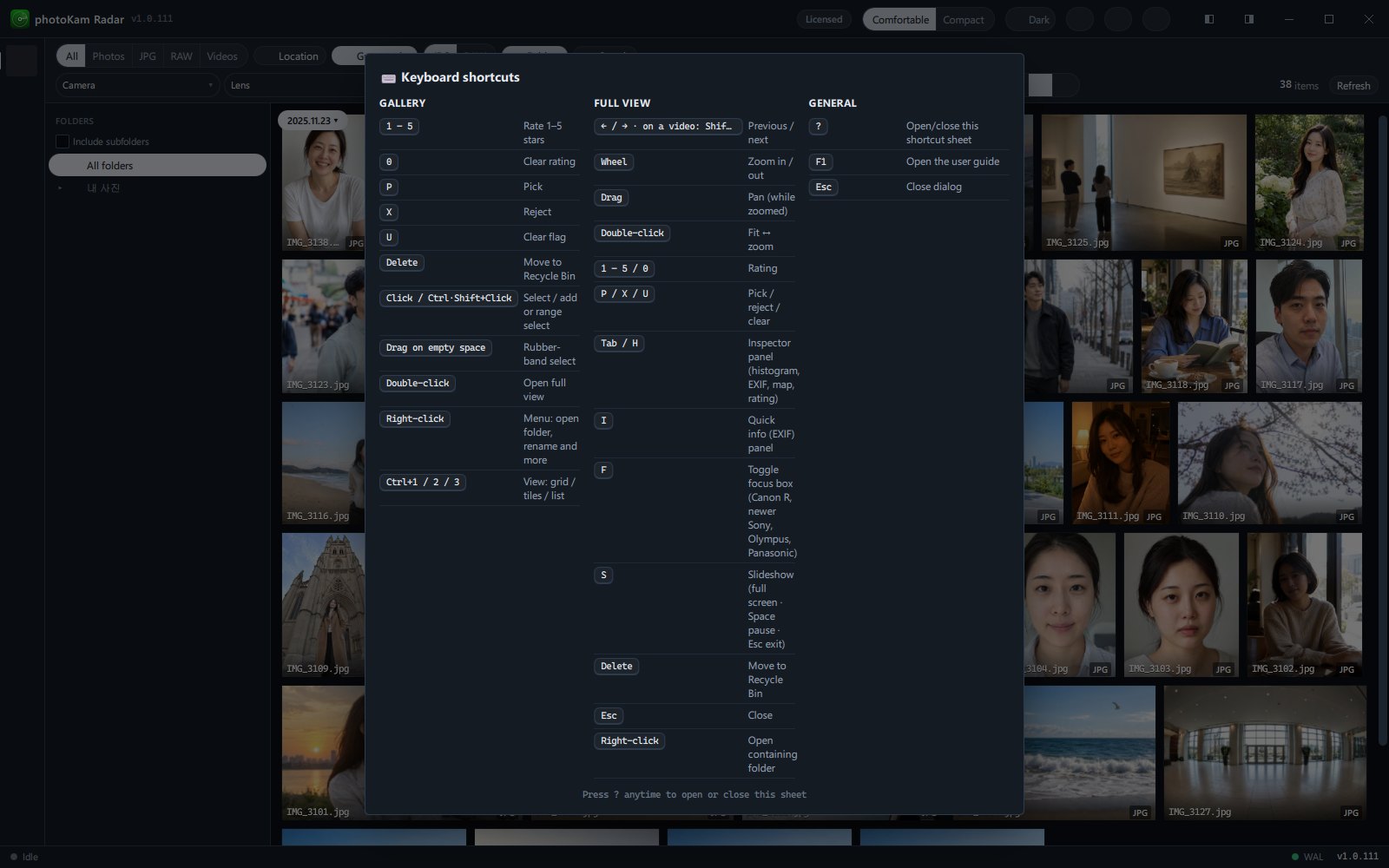
- Press ? anywhere in the app (on US and Korean keyboards, Shift+/) to open the Keyboard shortcuts sheet. You can also open it with the Shortcuts (?) button in the top bar. Press ? or Esc again, or click outside the sheet, to close it.
- The app's shortcut sheet gathers the most common shortcuts (Gallery · Full view · General). This page covers everything, including the editor, videos, slideshows and cropping.
- Press F1 to open the user guide (this works in the editor too).
- On macOS, use ⌘ (Command) instead of Ctrl. For shortcuts on this page that include Ctrl, press ⌘ on macOS (for example, Ctrl+Z → ⌘+Z, Ctrl+click → ⌘+click).
Shortcut list
Anywhere
| Key | Action |
|---|---|
| ? | Open / close the shortcut sheet (typed as a character while you're typing in a text field) |
| F1 | Open the user guide |
| Ctrl+, | Open Settings (when the full view or the compare screen isn't open) |
| Esc | Close the open window |
Grid · Tiles · List (gallery)
Rating and flag keys work only when photos are selected. If several photos are selected, the key applies to all of them at once.
| Key | Action |
|---|---|
| 1 – 5 | Rate 1–5 stars |
| 0 | Clear rating |
| P | Pick |
| X | Reject |
| U | Clear flag (pick · reject) |
| Delete | Move the selected photos to the Recycle Bin — a confirmation window appears first |
| F2 | Rename — a confirmation window appears first |
| Enter | Open the current photo in the full view |
| Arrow keys | Move between photos (← → in the Tiles view) |
| Ctrl+A | Select all |
| Esc | Close the Jump to date window → close the detail panel (if not pinned) → clear the selection, in that order |
| Ctrl+1 / Ctrl+2 / Ctrl+3 | View: Grid / Tiles / List |
| Ctrl+G | Open / close the Jump to date window |
| F5 | Refresh the list |
| Ctrl+C | Copy the selected photo files — paste them into a folder in File Explorer with Ctrl+V |
| Ctrl+V | Import photos · videos copied in File Explorer — copied to the top of the first drive · folder turned on in the Volumes screen |
| Ctrl+Shift+C | Copy the current photo's edits (when it has been edited) |
| Ctrl+Shift+V | Paste edits to the selected photos |
| Mouse | Action |
|---|---|
| Click | Select one photo |
| Ctrl+click | Add to or remove from the selection one at a time |
| Shift+click | Select a range |
| Drag on empty space | Draw a rectangle to select the photos inside it |
| Double-click | Full view |
| Right-click | Menu with Open folder · Rename · Copy · Copy/paste edits and more |
| Drag a photo to another program or File Explorer | Send the file there |
Folder tree (left)
Works after you click the folder tree once.
| Key | Action |
|---|---|
| ↑ / ↓ | Move to the folder above / below |
| Home / End | Move to the top / bottom |
| → | Expand a collapsed folder; if it's already expanded, move to its first subfolder |
| ← | Collapse an expanded folder; if it's already collapsed, move to its parent folder |
Jump to date
| Key | Action |
|---|---|
| Enter | Go — Move to the first photo of the selected year · month · day |
| Esc | Close the window |
Compare
| Key | Action |
|---|---|
| 0 | Reset (zoom · position) |
| ← / → | Previous · next candidate (in Reference compare) |
| Esc | Close compare |
Full view (photos)
| Key | Action |
|---|---|
| ← / → | Previous / next photo |
| PgUp / PgDn | Previous / next photo |
| 1 – 5 · 0 | Rate · clear rating |
| P · X · U | Pick · reject · clear flag |
| Tab or H | Show / hide the analysis · info panel (histogram · photo info · map · rating) |
| I | Show / hide the quick info panel |
| F | Show / hide the focus point box (only for cameras that record focus information) |
| S | Start a slideshow (when there are two or more photos in the list) |
| Delete | Move the current photo to the Recycle Bin |
| Ctrl+C | Copy the current photo file |
| Esc | Close the full view |
| Mouse | Action |
|---|---|
| Wheel | Zoom in / out |
| Drag (while zoomed in) | Move the photo |
| Drag (while fit to screen) | Drag and drop the photo file into File Explorer or another program |
| Double-click | Fit to screen ↔ zoom in |
| Right-click | Menu with Copy · Open folder · Edit · Rotate · Delete |
| Wheel over the filmstrip at the bottom | Scroll the filmstrip sideways |
Slideshow
| Key | Action |
|---|---|
| Space | Pause / play |
| ← / → · PgUp / PgDn | Previous / next photo |
| N | Next track |
| P | Previous track |
| Esc | Close the open track list · settings → if nothing is open, end the slideshow (returning to the full view of the last photo shown) |
Video (in the full view)
| Key | Action |
|---|---|
| Space | Play / pause |
| ← / → | Skip back / forward (10 s by default — Video seek step (seconds) in Settings) |
| Shift+← / Shift+→ | Previous / next file |
| PgUp / PgDn | Previous / next file |
| M | Mute / unmute |
| F | Full screen on / off |
| Esc | Exit full screen (if not in full screen, close the full view) |
| Mouse | Action |
|---|---|
| Double-click the video | Full screen on / off |
| Control bar at the bottom | Play · seek · volume · playback speed (0.5x · 1x · 1.25x · 1.5x · 2x) · subtitle selection |
Editor
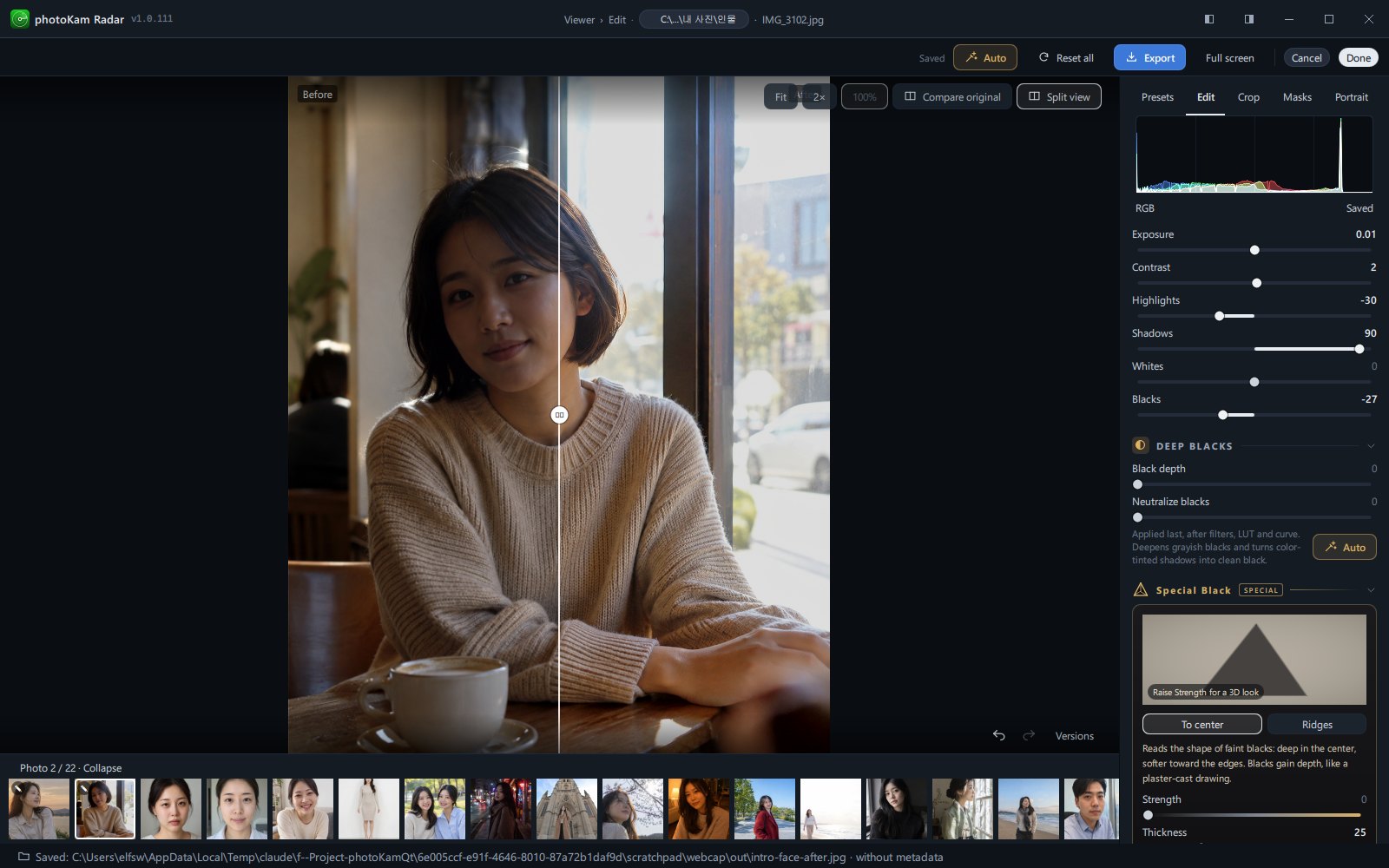
| Key | Action |
|---|---|
| Ctrl+Z | Undo |
| Ctrl+Shift+Z (or Ctrl+Y) | Redo |
| Ctrl+Shift+C | Copy edits |
| Ctrl+Shift+V | Paste edits — a window opens where you choose what to paste (light · color · effects · crop · rotation · masks). If you selected several photos in the filmstrip at the bottom, the edits are applied to all of them at once |
| Ctrl+→ or PgDn | Next photo in the filmstrip |
| Ctrl+← or PgUp | Previous photo in the filmstrip |
| \ (the backslash key; ₩ on a Korean keyboard) | Toggle between the edited photo and the original (Compare original) |
| Y | Turn Split view on / off — drag the center line to compare before and after side by side |
| F11 | Full screen on / off |
| Esc | Turns off active tools one at a time (preview → eyedropper · color picking · repair → mask → crop, in that order). If no tool is active, Done (save edits and close) |
| Mouse | Action |
|---|---|
| Drag a slider's name left and right | Change the value (hold Shift while dragging to fine-tune) |
| Double-click a slider or its name | Return to the default (usually 0) |
| Click a number field | The whole value is selected, so you can type a new number right away |
| Wheel over the photo | Zoom in / out around the mouse position |
| Ctrl+click · Shift+click in the filmstrip at the bottom | Select several photos (targets for pasting edits) |
Crop mode (Crop tab in the editor)
| Key | Action |
|---|---|
| Arrow keys | Move the crop area 1 pixel at a time (10 pixels with Shift) |
| Arrow keys after clicking a handle | Resize the crop area in that handle's direction (in larger steps with Shift) |
| Enter | Apply the crop |
| Esc | Cancel the crop |
| Double-click the crop area | Apply and go to the Edit tab |
First-run guide · Feature tour · Other windows
| Where | Key | Action |
|---|---|---|
| First-run guide | → · Enter / ← | Next / previous |
| First-run guide (when shown again from Settings) | Esc | Skip |
| Feature tour | → · Enter / ← / Esc | Next / previous / exit |
| License window · map window | Esc | Close |
| Update window | Esc | Close (unless it's a required update) |
Step by step
- Press ?
The shortcut sheet opens. You can also click Shortcuts (?) in the top bar.
- Find the key you need
The sheet is divided into three groups: Gallery, Full view and General.
- Close it with ? or Esc and try it out
For example, select a few photos in the grid and press 5 to give all the selected photos 5 stars.
Result
A single key press rates or flags all the selected photos. The Recycle Bin and rename keys always show a confirmation window first, so pressing the wrong key doesn't affect your files right away.
Good to know
After rating and flagging, narrow things down with the rating · flag filters in the toolbar to cull photos even faster → Search and filters.
While you're typing in a text field (search · tags · name · number fields), the keys you press are typed as characters. To use shortcuts, click outside the field first.
While you're watching a video, ← / → skip within the video. To move to the next file, also hold Shift, or use PgUp / PgDn.
In the full view, F shows the focus point marker on photos and toggles full screen on videos.
In crop mode, apply (Enter) or cancel (Esc) the crop first, then use Ctrl+Z and the keys for moving between photos.
Pressing Esc repeatedly in the editor turns off active tools one by one and finally saves your edits and closes the editor. To discard the changes you just made and close, click Cancel at the top right.
- macOS: Press every shortcut that includes Ctrl with ⌘ (Command) instead.
Frequently asked questions
Pressing number keys doesn't rate photos.
You need to select (click) a photo first. If a cursor is blinking in a text field such as the search box, click once outside the field.
Pressing ? doesn't open the shortcut sheet.
On US and Korean keyboards, press Shift+/. If the cursor is in a text field, it's typed as a character.
I pressed Esc in the editor and it closed. Did I lose my edits?
No. Esc works like Done: it saves your edits and closes the editor. Click Edit again to pick up right where you left off.