User Guide
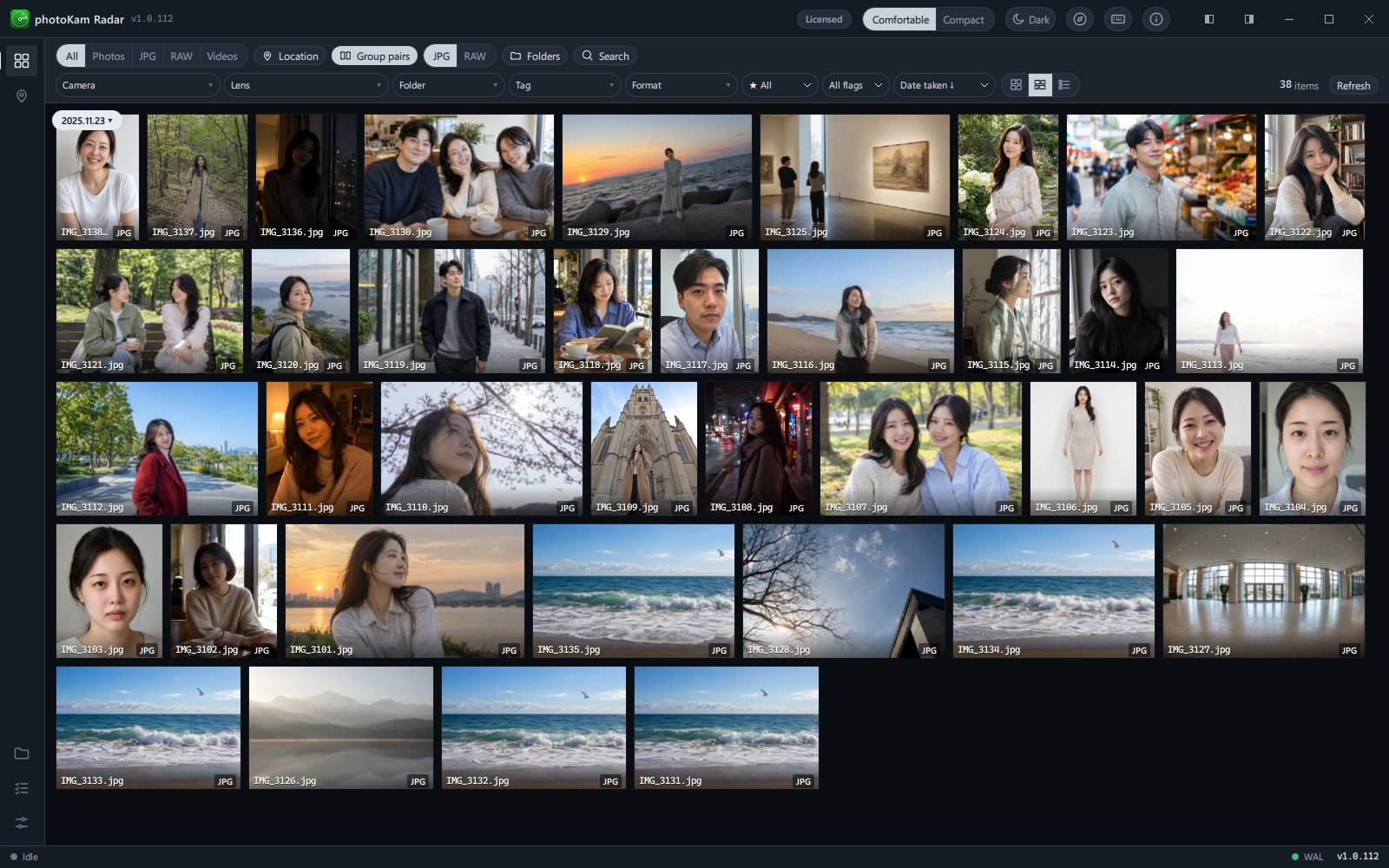
photoKam Radar finds the photos and videos on this PC and brings them together in one place, so you can pick the ones you like, edit them and export them as new files. If you're new, read "If you're new, follow these steps" below in order. If you're looking for something specific, jump straight to it from the contents or "Popular topics".
If you're new, follow these steps
- Install the app and finish the welcome guide
Choose where to look for photos (a few folders / the whole computer) and how to view them (grid, tiles, list), then click Start. photoKam Radar starts finding photos in the background → Installation and first launch
- Learn the screen layout
Find out what the top bar, the left sidebar, the toolbar and the status bar each do → Screen layout
- Skim and cull your photos
Change the view, and mark ratings, picks and rejects → Viewing and selecting photos
- Narrow down to the photos you want
Filter by camera, folder, date and tag → Search and filters
- View photos large
Double-click a photo to open the full view. You can zoom, check the focus point, see photo information and play a slideshow → Full view
- Edit
In the full view, click Edit. Correct the photo in one step with Auto, then fine-tune brightness and color → Editor overview
- Export as a new file
Your original stays as it is; only the edited result is saved as a new file → Export
- Know the difference between the free and full versions
Anyone can use every feature for free. The only difference is whether a watermark appears on exported photos and slideshows → Free version · Full version · License registration
Your original photos are safe. Edits (including 90° rotation) are stored separately, and an edited result is written to a file only when you create a new file with Export.
Contents
Getting started
| Topic | What it covers |
|---|---|
| Installation and first launch | Installation, the welcome guide (where to look · how to view · selection color), and how photo indexing begins |
| Screen layout | Where the top bar · left sidebar · toolbar · status bar are and what they do |
| Free version · Full version · License registration | Differences between the free and full versions, sending your activation code, registering a license |
Finding photos
| Topic | What it covers |
|---|---|
| Viewing and selecting photos | Three view modes, the details panel, selecting several photos, ratings · flags |
| Search and filters | Filtering by type · camera · lens · folder · tag · extension · date range, grouping RAW+JPG |
| Jump to date · Map | Jumping straight to a year · month · day, viewing photos with location data on a map |
| Full view | Zoom · focus point · overexposure warning · RAW/JPG switching · All · RAW · JPG · slideshow · inspector panel |
| Video · Subtitles · Rotation | Playback · skipping · playback speed · subtitles · rotation |
Editing photos
| Topic | What it covers |
|---|---|
| Editor overview | Auto · undo · original/split view · versions · copy/paste edits · filmstrip at the bottom |
| Light | Exposure · contrast · highlights/shadows · whites/blacks |
| Deep Blacks | Readjusting blacks after applying a filter — black depth · neutralize blacks · auto |
| Tone Curve | RGB · red · green · blue curves |
| Detail | Sharpening · noise reduction · AI denoise · texture · dehaze · clarity |
| Lens Corrections | Distortion · chromatic aberration · purple/green fringe removal |
| Repair · Effects | Spot removal, vignette · grain |
| Color | White balance · auto color · temperature/tint · vibrance/saturation · black & white · color mixer · color targets · color grading · looks |
| Crop | Crop · rotate · straighten · perspective |
| Masks | Brush · linear · radial · rectangle · magic select · auto select, separate adjustments for each mask |
| Portrait retouching | Skin · body · eyes · mouth · makeup · face shape, choosing a person, add-on models |
| Presets | Built-in presets · categories · saving/importing/exporting your own presets · reference photo |
Export and more
| Topic | What it covers |
|---|---|
| Export | Format · color space · quality · size · save location · photo information (EXIF) · opening the saved folder directly |
| Settings | Language · theme · where to look · indexing speed · excluded folders · storage · updates · anonymous usage statistics |
| Keyboard shortcuts | All keyboard shortcuts and mouse actions for the grid · full view · slideshow · video · editor · crop |
| FAQ · Troubleshooting | Protecting originals · free version · licenses on another PC · RAW speed · data location · deleted photos · updates |
Popular topics
| What you want to do | Go to |
|---|---|
| Make a photo crisp and bright in one step | Editor overview — Auto |
| Blacks turned gray after applying a filter | Deep Blacks |
| Remove harsh noise from night shots | Detail — AI denoise |
| Straighten a leaning building | Crop — Perspective |
| Darken only the sky, brighten only a face | Masks |
| Retouch skin · teeth · makeup | Portrait retouching |
| Apply the same edits to several photos | Editor overview — Copy · paste edits |
| Remove location data from exported files | Export — Photo information |
| Find where an exported file was saved | Export — "Saved" in the status bar |
| View only RAW or only JPG | Full view — All · RAW · JPG |
| Jump straight to photos from a specific date | Jump to date · Map |
| Exclude a specific folder from the list | Settings — Excluded folders |
| The computer slows down because of indexing | Settings — Background indexer |
| Register a license | Free version · Full version · License registration |
| Make sure your originals don't change | FAQ — Originals and editing |
Need more help?
- In the app, press ? to open the shortcuts window, or F1 to open the short user guide included with the app.
- Click Feature tour in the top bar for a step-by-step tour of the features around the screen.
- Type a word in the search box at the top of the Settings screen to jump straight to that setting.
- If you still need help, contact us at exapeak@naver.com. See FAQ — Contact us for how to get in touch.
- For downloading, installing, updating and uninstalling the app, see the Download page.