Free version · Full version · License registration
Anyone (individuals, companies, institutions, including commercial use) can use every feature of photoKam Radar for free. The only difference between the free and full versions is a watermark. In the free version, exported photos and slideshows carry a faint diagonal text watermark that reads "photoKam Radar · Free" (the editor and the full view also preview the same watermark on edited photos). To use the app without the watermark, buy a full license and register it. Registration takes two steps: "send this PC's activation code → enter the license you receive".
When to use it
- When you want to know what's different between the free and full versions.
- When you wonder whether you may use the free version for work or commercial purposes.
- When you've bought a license and want to register it on this PC.
- When you want to know how to register the license text or the
license.PhotoKamRadarfile you received by email. - When a message appears, such as "License is for another PC".
- When you want to check whether your copy is licensed, and to whom and when the license was issued.
Where to find it
- The license badge on the right of the top bar — Free version (orange badge) or Licensed. Click it to open the License window.
- When you export photos in the free version: the note at the top of the export window and the Register license button (Export).
Screens and buttons
Free and full versions
| Item | Free version | Full version |
|---|---|---|
| Who can use it | Anyone (individuals · companies · institutions · including commercial use) | Same |
| Photo finding · gallery · search · map · full view · video | All available | All available |
| Photo editing (all panels · masks · portrait retouching · presets) | All available | All available |
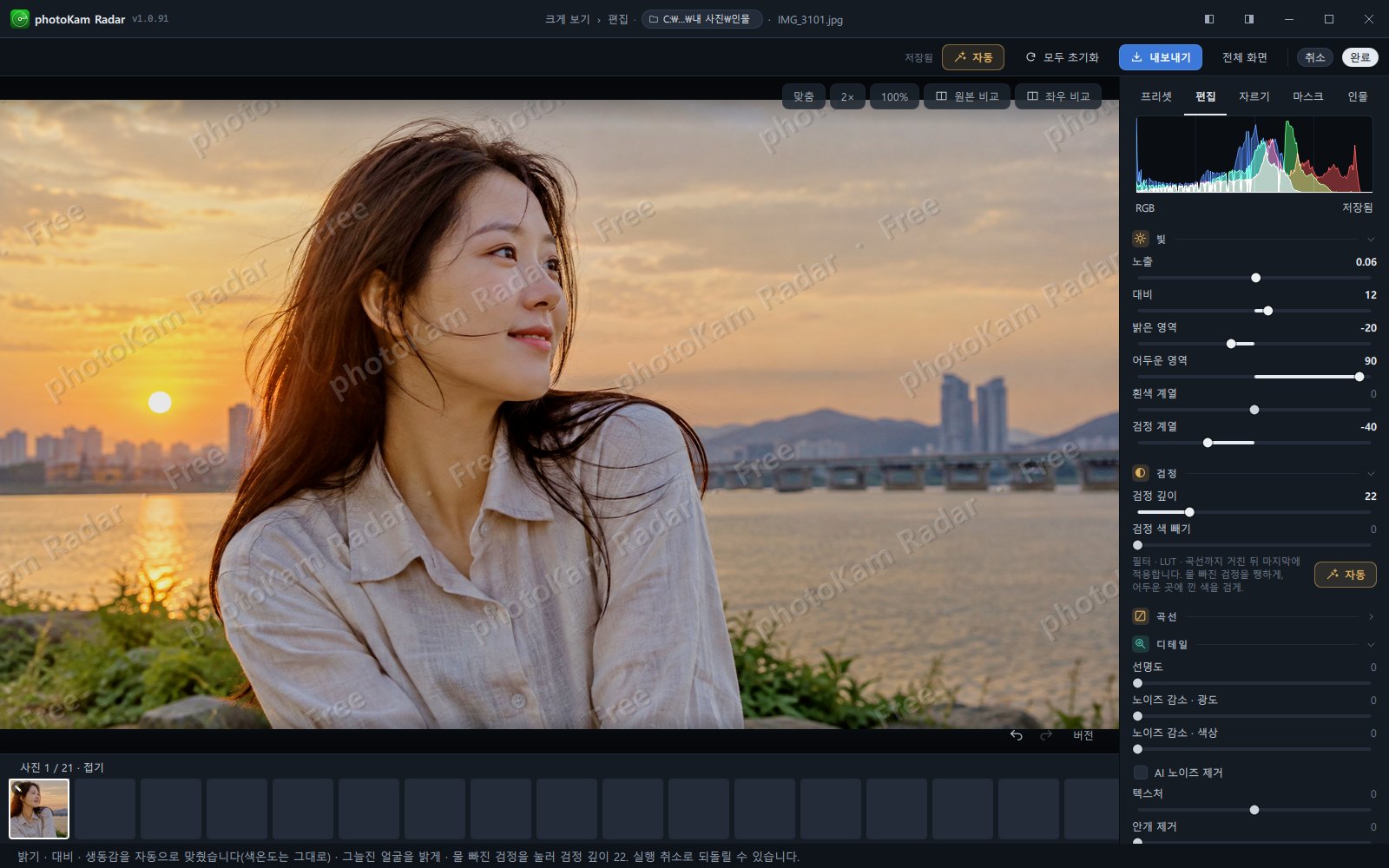
| Exported photos | A watermark (faint diagonal text) across the whole photo | No watermark |
| Photos in the editor | Preview of the watermark that will be added on export | No watermark |
| Full view · slideshow | The watermark shows on edited photos (not on unedited photos or photos that were only rotated 90°) | No watermark |
| Top bar badge | Free version (orange) | Licensed |
The watermark is the text "photoKam Radar · Free" repeated at a slant (about 30°) across the whole photo, so faint that it's barely visible in both bright and dark areas.

License window — free state
| Name | What it does |
|---|---|
| Status badge | Current status (see the "Status badges" table below) |
| Info text | "The free version has every feature, but the editor preview and exported photos carry a faint diagonal 'photoKam Radar · Free' pattern. Register a license to see and export without it." |
| Red info box (rarely) | "This PC's configuration has changed, so license activation may not match. Please contact us if you have trouble." — shown only when there are signs that this PC's hardware configuration has changed |
| I agree to the license terms | You must check this before you can click the buttons below |
| Read terms | Opens the terms of use (EULA) |
| 1 Send this PC's activation code | The code used to issue a license for this PC only. It's shown as a long string over several lines in a gray box (you can also drag over it with the mouse to copy it) |
| Copy code | Copies the code to the clipboard — "Activation code copied." |
| Write email | Opens your email program and fills in the recipient, the subject ("photoKam Radar license request") and the body (instructions + code) for you |
| 2 Enter the license you received | Input box where you paste the license text you received (placeholder: "Paste the license text here") |
| Activate | Registers with the pasted text. You can click it only after you agree to the terms and enter the text |
| Open file | Choose the license.PhotoKamRadar file you received to register it |
| Result message | Green for success, red for failure (see the "Result messages" table below) |
| Purchase and license information | A link shown only when the license is for another PC; opens the store (Naver Smart Store) |
| Purchase & support: exapeak@naver.com | Contact address at the bottom |
| ✕ | Close. You can also close the window by clicking outside it or pressing Esc |
License window — licensed state
| Name | Details |
|---|---|
| Status badge | Licensed · active (green) |
| Licensed to | The name registered on the license |
| Issued | Date of issue |
| Valid until | A date or No expiry |
| Note | Shown only when there's something in it |
Status badges
| Text | Meaning | What to do |
|---|---|---|
| Free version | Using the free version | To register, see "Step by step" below |
| Licensed · active | A license that matches this PC is registered | — |
| License expired | The license's validity period has ended | Contact us |
| License is for another PC | The license was issued for a different PC | Buy a new license for this PC (Purchase and license information) |
| License file is damaged | The saved license can't be read | Paste the text you received again, or contact us |
Result messages
| Message | Meaning |
|---|---|
| "License activated. Thank you!" | Registration complete. The top bar badge changes to Licensed |
| "This license has expired." | The license has expired |
| "This license belongs to another PC. One license can be used on one PC. To use it on this PC, please purchase a new license." | The license was issued with another PC's activation code |
| "The license can't be read. Check that you pasted the whole text." | Part of the text was cut off, or the text isn't a license |
| "Couldn't save the license." | It couldn't be saved on this PC — contact us |
Step by step
- Open the License window
Click Free version in the top bar (or Register license in the export window).
- Accept the terms
Check I agree to the license terms. You can read the terms with Read terms.
- Send the activation code
Click Write email and your email program opens with the recipient, subject and code already filled in. Add the buyer's name and the order number to the body and send it.
If you use webmail, copy the code with Copy code, paste it into the email service you use and send it to exapeak@naver.com.
- Receive the license
A license for this PC only arrives as several lines of text or as a
license.PhotoKamRadarfile. - Register
If you received text, paste all of it into input box 2 and click Activate. If you received a file, choose it with Open file.
- Check
Registration is complete when "License activated. Thank you!" appears, the status changes to Licensed · active and the top bar badge changes to Licensed. The watermark in the editor also disappears right away.
You can buy the full version at Naver Smart Store — Regular price ₩49,000, now ₩29,000 until October 15, 2026 (on sale).
Result
 BeforeAfter
Once your copy is licensed, no watermark appears anywhere: in the editor, exported photos, the full view or slideshows. Files you already exported with the free version keep their watermark, so export them again if needed.
Keyboard shortcuts
| Key | What it does |
|---|---|
| Esc | Close the License window (even when the cursor is in an input box) |
| Ctrl+V | Paste the license text into input box 2 |
Good to know
Paste the license text in full, from beginning to end. When copying from an email, select all of it so that the first and last lines aren't cut off. If you received a file, Open file is the most reliable way.
The registered license is stored on this PC, so your copy stays licensed even when you update or reinstall the app.
One license is for one PC. To use the app on another PC, you need to buy a new license with that PC's activation code. If you register the license you received on a different PC, the message "This license belongs to another PC" appears.
If "License is for another PC" appears on the same PC, or a red box says "This PC's configuration has changed…", your PC's configuration may have changed. Please contact exapeak@naver.com.
Under Article 1 of the terms of use, anyone (individuals, companies, institutions, including commercial use) can use every feature for free, and the only difference between the free and full versions is the watermark on exported photos and slideshows (the same note is in the About window in the top bar). You may use the free version for work.
In the full view and slideshows, the watermark appears only on edited photos. Photos that were only rotated 90° without opening the editor have no watermark. There's also no watermark when you view unedited photos in the full view or in a slideshow. Photos rotated 90° in the grid, the full view or the details panel are saved as edited photos and get an edit mark (✎) in the grid, but no watermark is added (Viewing and selecting photos).
Frequently asked questions
Are any features limited in the free version?
No. Every feature is available. The only difference is the watermark on exported photos and slideshows (it's also previewed on edited photos in the editor and the full view).
May I use the free version for work or commercial purposes?
Yes. Anyone (individuals, companies, institutions, including commercial use) can use every feature for free. To keep the watermark off your exported photos, buy and register a full license.
Does a full license expire?
It's as shown under Valid until in the License window. Licenses are usually issued with No expiry.
I've changed computers.
A license is tied to one PC. To use the app on your new PC, please buy a new license with the new PC's activation code. If you have special circumstances, contact exapeak@naver.com.
Nothing happens when I click Write email.
The button opens the default email program set on this PC. Copy the code with Copy code, paste it into the email service you use (webmail and so on) and send it.
I can't click the Activate button.
Check that you've checked I agree to the license terms and that the input box contains the license text.