Settings
A complete list of everything you can change on the Settings screen. It covers display settings such as language, theme and thumbnail size, as well as where to look for photos, indexing speed, excluded folders, storage, updates and anonymous usage statistics. Every setting is saved as soon as you change it.
When to use it
- When you want to change the app's language, or switch to the bright screen (Light) because the dark screen doesn't suit your eyes.
- When you want to narrow where photos are looked for from "The whole computer" to "A few folders", or exclude specific folders.
- When indexing seems to slow your computer down and you want to lower the speed, or have indexing stop when you close the app.
- When thumbnails take up a lot of disk space and you want to set a size limit or clear them.
- When you want to turn off update checks or anonymous usage statistics.
Where to find it
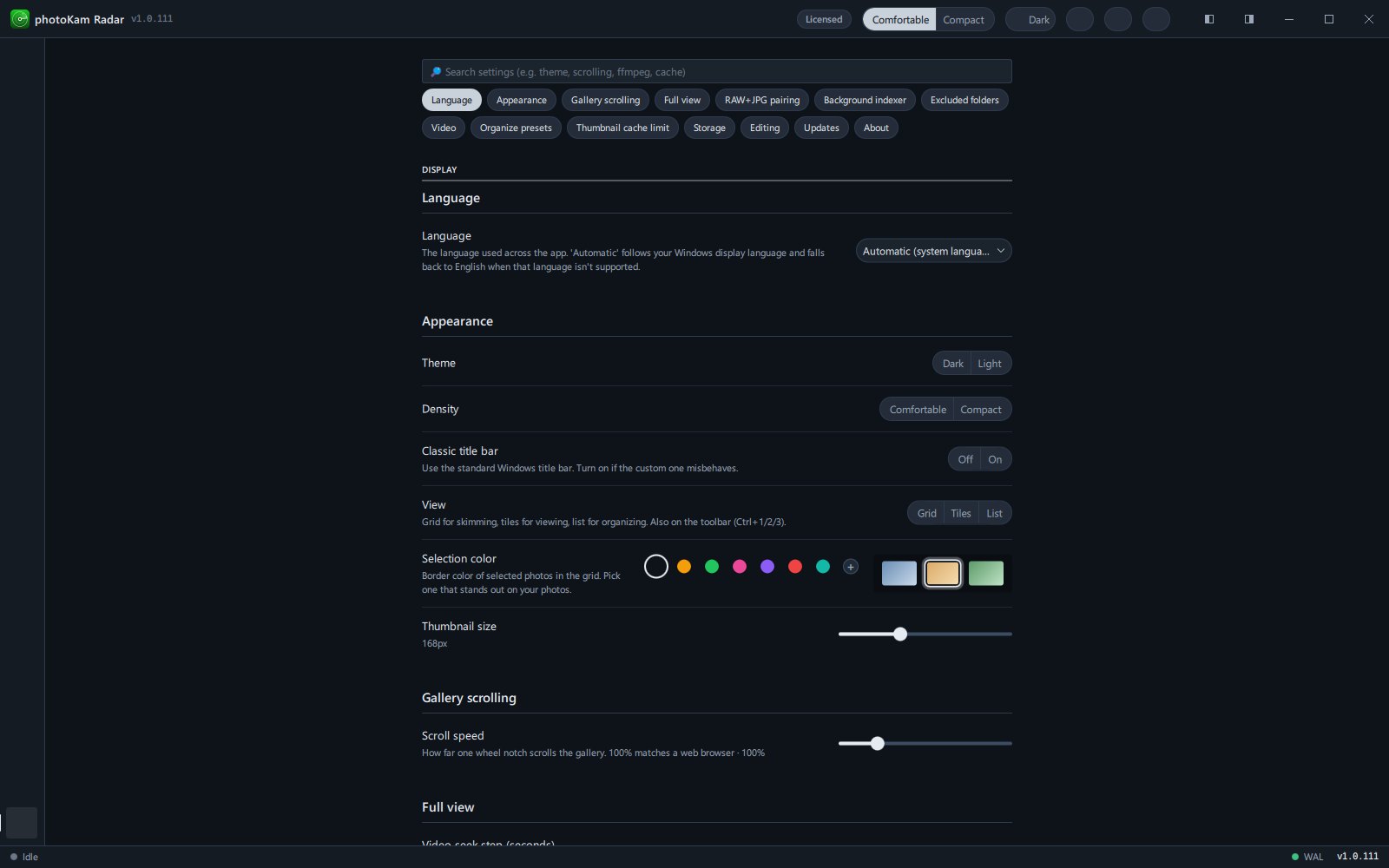
Click Settings at the bottom of the left sidebar. The shortcut is Ctrl+, (when the full view or the compare screen isn't open).
- At the top is a search box (🔎 Search settings (e.g. theme, scrolling, ffmpeg, cache)). Type a search term, and only the settings containing that text remain. If it matches a section title, the whole section is shown.
- Click one of the shortcut buttons below the search box (Language · Appearance · Gallery scrolling · Full view · RAW+JPG pairing · Background indexer · Excluded folders · Video · Organize presets · Thumbnail cache limit · Storage · Editing · Updates · About) to jump to that section. The button for the section you're viewing is highlighted.
- Settings are divided into three groups: Display, Indexing & storage and Application.
- Your choices are saved immediately and kept even after you restart the app (text fields are saved when you leave the field).
- Settings you can also change elsewhere: the Dark / Light buttons in the top bar (theme), the Comfortable / Compact buttons (density), the indexing message in the status bar at the bottom (indexing speed), and Group RAW+JPG in the toolbar.
Settings
Display — Language
| Name | Options | Default | Description |
|---|---|---|---|
| Language | Automatic (system language) · Korean · English · Japanese · French · German · Spanish (each shown in its own language) | Automatic (system language) | The language of the app. Automatic (system language) follows your Windows display language, and uses English for any other language. It changes as soon as you choose. |
Display — Appearance
| Name | Options | Default | Description |
|---|---|---|---|
| Theme | Dark · Light | Dark | The brightness of the whole screen. The full view, the editor and the histogram change along with it. Same as the Dark / Light buttons in the top bar. |
| Density | Comfortable · Compact | Comfortable | The height of list rows and buttons. Set it to Compact to see more on one screen. The size of grid thumbnails is set with Thumbnail size below. |
| Classic title bar | Off · On | Off | Uses the standard Windows title bar. Turn it on if the top of the window looks odd or resizing the window doesn't work well. It takes effect right away. |
| View | Grid · Tiles · List | The view you chose in the first-run guide (Grid if you didn't choose) | How the photo list is shown. Grid is good for skimming, Tiles for viewing and List for organizing. You can also change it on the toolbar or with Ctrl+1 · Ctrl+2 · Ctrl+3. |
| Selection color | Theme default · Orange · Green · Pink · Purple · Red · Teal · Custom | Theme default | The border color of selected photos in the grid. You can change it to a color that stands out on your photos. With Custom, pick any color you like from the color picker. |
| Thumbnail size | 120–260 px (in 4 px steps) | 168 px | The size of grid thumbnails. While you drag the slider, the current value is shown in the description line. |
Display — Gallery scrolling
| Name | Options | Default | Description |
|---|---|---|---|
| Scroll speed | 50–300 % (in steps of 10) | 100 % | How far the list moves for one notch of the mouse wheel. 100 % is the same as a web browser. |
Display — Full view
| Name | Options | Default | Description |
|---|---|---|---|
| Video seek step (seconds) | 1–300 | 10 | How many seconds ← / → skip when you watch a video in the full view. To move to the previous/next file, press Shift+← / Shift+→ or PgUp / PgDn. |
Display — RAW+JPG pairing
| Name | Options | Default | Description |
|---|---|---|---|
| Pair display | Group · Split | Group | Sets whether a RAW and a JPG with the same name in the same folder are grouped as one photo showing only the preferred file (Group), or both are shown (Split). Applies to the All and Photos views. Same as Group RAW+JPG in the toolbar. |
| Preferred pair image | JPG · RAW | JPG | The file shown when the pair is grouped. JPG is fast and keeps the camera's colors; RAW is the original. |
Indexing & storage — Background indexer
The background indexer is a program that finds photos and videos and prepares the list and thumbnails in advance. It keeps working slowly in the background even when you close the app window, and pauses while you do other things.
| Name | Options | Default | Description |
|---|---|---|---|
| Where to look | A few folders · The whole computer | The scope you chose in the first-run guide (The whole computer if you didn't choose) | A few folders: looks only in the folders you added under Volumes in the left sidebar. The whole computer: registers connected drives automatically and looks there (system and program folders are excluded by default). Changing it restarts the indexer. |
| Status | (display only) | — | A green dot means it's running; a yellow dot means it's stopped. Shows the current task, processing speed (photos/min) and the number of photos left. On the right are the Open log folder button and either Stop (while running) or Restart (while stopped). |
| Speed | Eco · Balanced · Performance | Balanced | Eco: proceeds very slowly so it never gets in the way of using your computer (over several days). Balanced: half speed while you use the app, faster when you're away. Performance: full speed even while you use the app (may cause fan noise and heat). You can also change it by clicking the indexing message in the status bar at the bottom. |
| Speed up when away | On · Off | On | Speeds up when there's been no keyboard or mouse input for a while. |
| Pause on battery | On · Off | On | Pauses indexing while a laptop is running on battery. |
| Real-time detection | On · Off | On | Watches your photo folders and adds new photos to the list within seconds. When off, folders are checked periodically instead (no photos are missed; they just show up later). |
| Keep drives awake while browsing | On · Off | On | When an external drive goes to sleep, the first photo can take 3–5 seconds to appear. While the app is open, a tiny amount is read every 3 seconds to keep drives from sleeping; this stops when you close the app. |
| Start automatically at logon | On · Off | On if you clicked Get started in the first-run guide | When off, indexing runs only while photoKam Radar is running. |
| Re-check interval | 1 · 3 · 6 · 12 · 24 hours | 6 hours | How often folders are checked again for changed files. |
Messages shown in the indexer status and what they mean:
| Message | Meaning |
|---|---|
| Paused · full-screen app running | Paused briefly because a full-screen app such as a game or video is running |
| Paused · on battery | Paused briefly because the computer is running on battery |
| Paused · low disk space | Paused briefly because disk space is running low |
| Indexing slowly (app in use) | Slowed down because you're using the app |
| Indexing quickly (you're away) | Sped up because you're away |
| Paused briefly (video playing) | Paused briefly while you watch a video |
| Checking drives | Checking the connected drives |
Indexing & storage — Excluded folders
| Name | Options | Default | Description |
|---|---|---|---|
| Added by you | + Add folder · ✕ on each row | None | The chosen folders and their subfolders aren't searched. Remove a folder from the list with ✕ to search it again. |
| Built-in | Click the number button to expand · a switch on each row | All on | System folders such as Windows and program folders. We recommend leaving them on. |
| Exclude by name | Text field (separate with commas) | Empty | Folders with these names are skipped wherever they are. Saved when you leave the field. |
- If you choose a folder that has photos already indexed, the Exclude this folder? window appears and tells you "N photos here are already indexed."
- Keep them in the library — Photos found so far stay in the list; only new photos won't be searched for from now on.
- Remove from library too — Removes those photos from the list as well ("Removed N photos from the library."). The photo files aren't deleted.
- Clicking outside the window cancels.
Indexing & storage — Video
| Name | Options | Default | Description |
|---|---|---|---|
| ffmpeg folder | Folder path (text field) | Empty | The folder containing the tools used for video conversion and playback. Leave it empty to use the tools included with the app. Usually, leave it empty. After changing it, you need to restart the app for it to take effect. |
Indexing & storage — Organize presets
| Name | Options | Default | Description |
|---|---|---|---|
| Copy/move destination folders | + Add folder · name field · ✕ | None | Register folders you use often, and after selecting photos in the grid you can copy or move them there in one step from the Organize menu in the selection bar. In the name field, enter the name to show in the menu. Moved photos leave the index. |
Indexing & storage — Thumbnail cache limit
| Name | Options | Default | Description |
|---|---|---|---|
| Thumbnail cache limit | 0–500 GB | 10 GB | When thumbnails exceed this size, the ones not viewed for the longest time are removed first. 0 means no limit. |
| (Current size / count) | Clean up now | — | The current thumbnail size and count. The projected size once all thumbnails are created ("About … when complete") is also shown. Clean up now removes thumbnails right away to fit the limit. |
Indexing & storage — Storage
| Name | Options | Default | Description |
|---|---|---|---|
| Photos / videos | (display only) | — | The number of photos / videos currently in the list |
| Thumbnail cache | (display only) | — | Thumbnail size and count |
| Database path | (display only; the text can be selected and copied) | — | The location of the file that holds information such as the photo list, ratings, tags and edit values |
| Cache path | (display only; the text can be selected and copied) | — | The folder where thumbnails are stored |
| Rebuild video thumbnails | Rebuild videos only | — | Rebuilds only video thumbnails without rescanning everything. The list refreshes when it's done. |
| Clear thumbnail cache | Clear cache | — | Deletes all thumbnails. To prevent mistakes, the first click changes the button to Click again to clear, and the cache is cleared only if you click again within 4 seconds. Thumbnails are recreated on the next scan. |
Application — Editing
| Name | Options | Default | Description |
|---|---|---|---|
| Photo editor | Path to the program · Browse | Empty | The program that External editor in the detail panel opens photos with. Leave it empty to open them with the operating system's default program. |
| Video editor | Path to the program · Browse | Empty | The program that External editor opens videos with. Leave it empty to open them with the default program. |
Application — Updates
| Name | Options | Default | Description |
|---|---|---|---|
| Check for updates at startup | On · Off | On | Checks for a new version in the background after the app screen has fully loaded (no effect on startup speed). If there's a new version, a window shows it along with what changed. |
| Send anonymous usage statistics | On · Off | On | Sends only the information in the table below, anonymously, to improve the product. Click Off to stop sending immediately. The on-screen description: "To improve the product we send, with an anonymous installation number: install, update, launch and exit records with session length, app version, OS and its version, CPU type (x64 or ARM), language and region, and whether the copy is licensed. Photos, documents, file contents and paths are never sent." |
| Check for updates now | Check now | — | Checks immediately. The description line shows the current version. If you're on the latest version, "You're up to date (v…)." appears; if there's no connection, "Update check failed — please check your network." appears; and if there's a new version, the update window opens. Downloaded installers are checked for damage or tampering before they're installed. |
Anonymous usage statistics — what is and isn't sent:
| Sent | Not sent |
|---|---|
| An anonymous installation number (a randomly generated number — it can't identify you) | Contents of photos · videos · documents · files |
| Install · update · launch · exit records and session length | File names · folder paths |
| App version, OS and its version | Number of photos, user name |
| CPU type (x64 · ARM), language · region | Edit values · ratings · tags |
| Whether the copy is licensed (free · full version) |
Application — About
| Name | Options | Default | Description |
|---|---|---|---|
| photoKam Radar | (display only) | — | The current version |
| Welcome guide | Show again | — | Shows the first-run guide you saw after installation again (where to look · view · selection color). Showing it again doesn't restart the indexer. |
Step by step
Switch to the light theme
- Open Settings
Click Settings at the bottom of the left sidebar, or press Ctrl+,.
- Go to the Appearance section
Click the Appearance shortcut button, or type "theme" in the search box.
- Click Light under Theme
The screen brightens right away. Clicking the Light button in the top bar does the same.
Exclude a specific folder from the photo list
- Click the Excluded folders shortcut button.
- Click + Add folder and choose a folder.
- If a window says the folder has photos already indexed, choose what to do
To remove them from the list too, click Remove from library too; to keep them, click Keep them in the library. Either way, the photo files aren't deleted.
Make indexing stop when you close the app
- Click the Background indexer shortcut button.
- Turn off Start automatically at logon
From now on, indexing runs only while photoKam Radar is running.
(To stop right now) click Stop in the Status item. To turn it back on, click Restart.
Turn off anonymous usage statistics
- Click the Updates shortcut button.
- Click Off for Send anonymous usage statistics
Sending stops immediately, and nothing is sent until you turn it back on.
Result
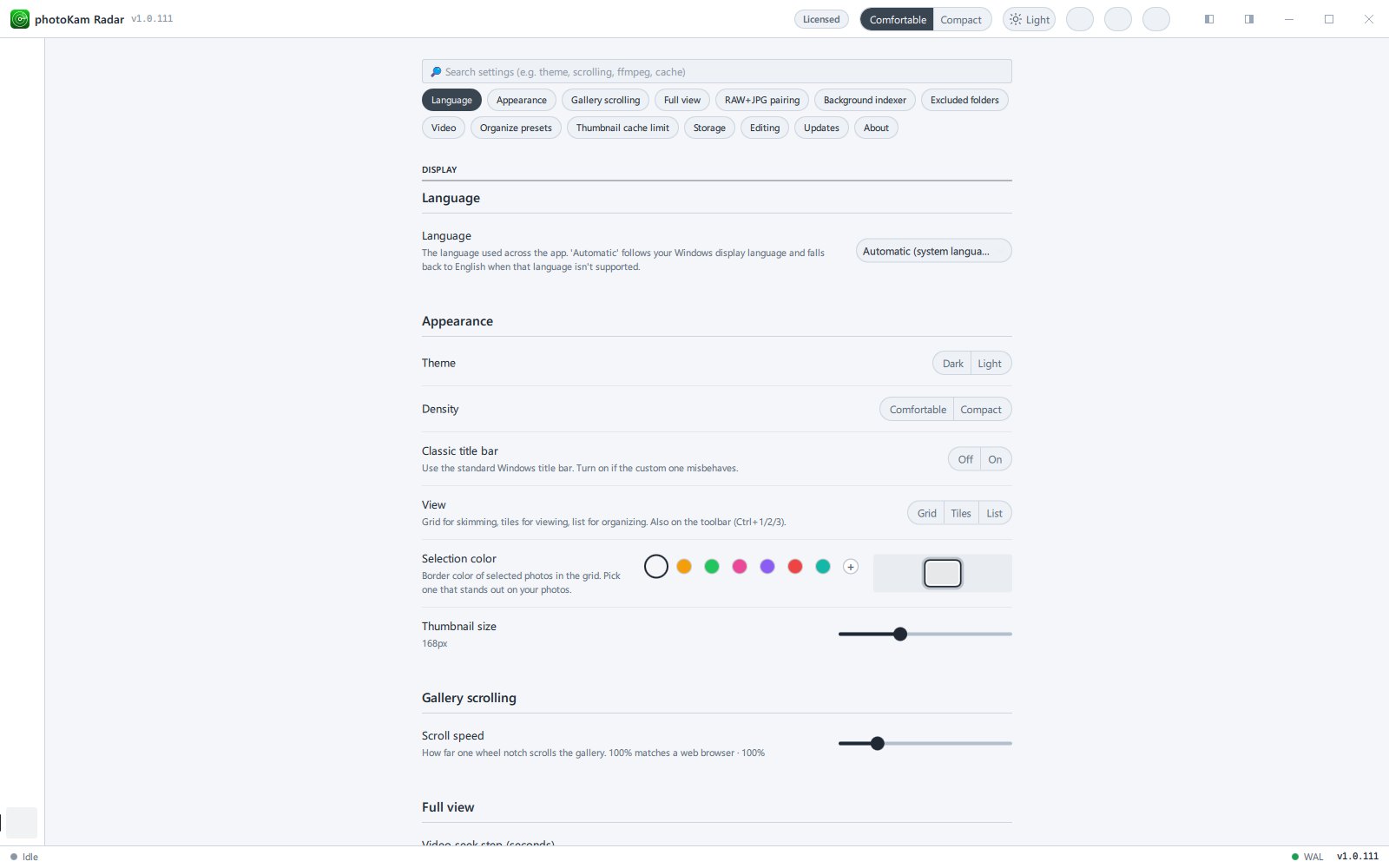
Changed settings are applied and saved immediately. They're kept even after you restart or update the app. The only setting that needs a restart to take effect is ffmpeg folder.
Good to know
If you can't find a setting, try typing a search term in the search box (for example, "cache", "battery", "language").
You can also change the indexing speed by clicking the indexing message in the status bar at the bottom. The menu shows how many photos per minute each speed processes.
Clear thumbnail cache deletes only thumbnails, not photo files. While thumbnails are being recreated, they appear slowly in the grid.
If you save in an external program opened with External editor, the original file changes. This is different from editing inside photoKam Radar, which leaves the original untouched.
When you change Where to look to A few folders, drives that were registered automatically are turned off. Add the folders you want to see under Volumes in the left sidebar.
Network drives and cloud drives are off by default (turning on a cloud drive makes it download the files). Turn them on under Volumes if you need them.
Frequently asked questions
I changed a setting, but there's no save button.
Settings are saved the moment you choose them. Text fields are saved when you click outside the field.
My computer stays busy even after I close the app.
The background indexer is looking for photos. Lower Speed to Eco, or turn off Start automatically at logon and click Stop. It pauses automatically while you use full-screen apps such as games or videos and while the computer runs on battery.
Does clearing the thumbnail cache also delete ratings or edit values?
No. Only the thumbnail images are deleted. Ratings, tags and edit values stay as they are.
Are my photos included in the anonymous usage statistics?
No. Photos, documents, file contents and paths are never sent. The only information sent is the anonymous installation number, install · update · launch · exit records and session length, app version, OS and its version, CPU type, language · region, and whether the copy is licensed (see the table above). If you don't want this, click Off.
I want to see the welcome guide again.
Click Show again for Welcome guide in the About section.