Search and filters
With the toolbar above the gallery, the search panel and the folder tree on the left, you can narrow hundreds of thousands of photos down to just the ones you want. You can combine type (photos · JPG · RAW · videos), camera, lens, folder, tag, extension, rating, flag, file name, ISO, aperture, focal length and shooting date range as conditions, and the conditions you set stay the same when you restart the app.
When to use it
- When you want to see only photos taken with a specific camera or lens (for example, only photos taken with your new lens).
- When you want to view only the photos from a specific trip (for example 2021-12-26 – 2022-01-31) in one continuous run.
- When you shoot RAW and JPG together, the same shot appears twice, and you want to group them into one.
- When you want to gather only the photos you've picked out, such as picked ✓ or ★4 and up.
- When you search by part of a file or folder name.
- When you want to expand drives and folders like in File Explorer and view a single folder.
Where to find it

- Toolbar (above the gallery): type · Location · Group pairs · Folders · Search · quick filters · sort.
- Search panel: click Search in the toolbar and it opens to the left of the photo list (click again to close it).
- Folder tree: click Folders in the toolbar and it opens at the far left (whether it's open or closed is saved).
Step by step
A. Viewing the photos of one trip in a continuous run
- Choose the folders
Open Folder in the toolbar's quick filters and check the folders of both cameras (for example
A7R3,EOS_RP). - Enter the period
Click Search in the toolbar to open the panel, and enter
2021-12-26and2022-01-31under Date taken. - Search
Click the Search button (or press Enter). Only the photos from that period are shown, in order of shooting date.
- View oldest first
Change Sort to Date taken ↑ to start from the first day of the trip.
B. Viewing only RAW files taken with a new lens
- Change the type to RAW.
- Check that lens under Lens in the quick filters. The list changes right away.
C. Grouping RAW+JPG into one
- Leave the type set to All or Photos.
- Turn on Group pairs (accent color). Each shot is shown as a single thumbnail, and its format badge changes to RAW+JPG.
- Choose the format to show with JPG · RAW next to it. In the full view, you can switch between the RAW and the JPG of the same shot with Show RAW file · Show JPG file (Full view).
D. Gathering only the photos you've picked out
- Change All flags in the quick filters to Picked.
- Change the rating filter to 4★ and up. Only photos that are picked and rated ★4 or more remain.
E. Viewing a single folder like in File Explorer
- Click Folders in the toolbar to open the tree.
- Click ▸ on a drive row to expand it, then click the folder you want.
- To include subfolders, check Include subfolders.
- When you're done, click All folders or the × on the folder chip in the toolbar.
F. Resetting conditions
- Click Reset at the bottom of the search panel.
- All filters are cleared and the sort returns to Date taken ↓ (type and Group pairs stay as they are).
Result
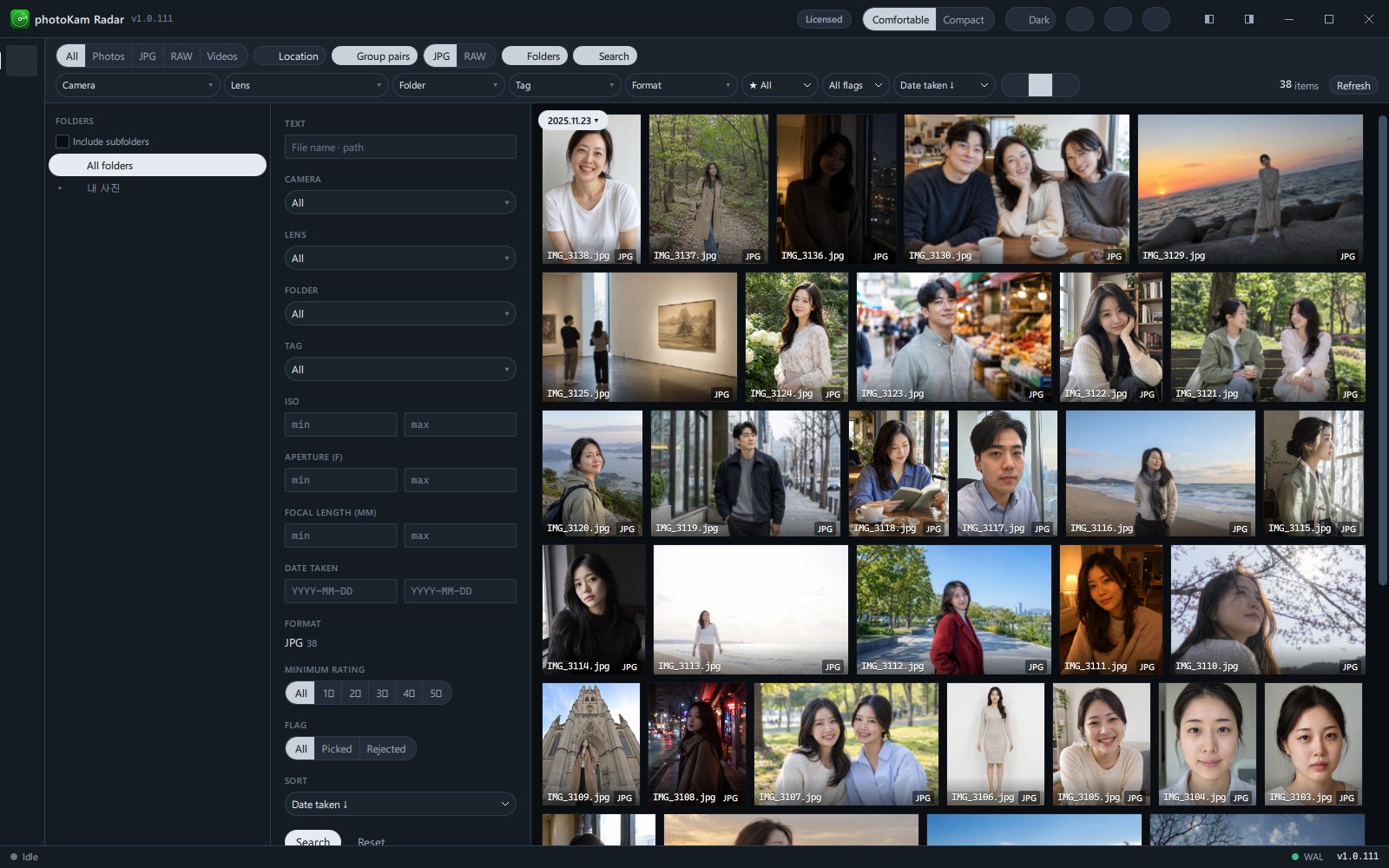
The photo count on the right of the toolbar (N items) is the number of photos in the filtered result. If there are no results, "No photos yet" appears in the middle of the screen with a suggestion to change the conditions.
Keyboard shortcuts
| Where | Key | What it does |
|---|---|---|
| Search panel input box | Enter | Search (applies the text, range and shooting date conditions) |
| Folder tree | ↑ · ↓ | Move to the folder above · below (that folder is shown when you stop pressing keys) |
| Folder tree | → · ← | Expand · go to the first subfolder / collapse · go to the parent folder |
| Folder tree | Home · End | All folders · the bottom folder |
| Gallery | F5 | Reload the list with the same conditions |
Good to know
The conditions you set are saved and stay the same when you restart the app. If you wonder "Why are there so few photos?", first check the quick filters and folder chip in the toolbar and the search panel, then click Reset.
The toolbar and the search panel share the same values for camera, lens, folder and tag. If the toolbar is too narrow to use comfortably, choose them in the panel.
To simply jump to a date without filtering by a date range, use Jump to date (the list stays as it is; only the viewing position moves).
The text, ISO, aperture, focal length and shooting date in the search panel are applied when you click the Search button or press Enter. Checklists, rating, flag and sort apply immediately.
With the Date taken ↓ · Date taken ↑ sort, if shooting dates are confirmed later during indexing, the button changes to N photos dated · Re-sort. Click it to move those photos to their places (they move when you click, so the list stays steady while you scroll).
Photos without shooting information (screenshots, photos received through messengers and so on) aren't found by camera, lens, ISO, aperture or focal length conditions.
Date taken in the search panel also filters only by the shooting date recorded in the photo, so photos without one drop out when you enter a period (the list sort and Jump to date place such photos by their file date).
The filmstrip at the bottom of the full view works independently of the search conditions and shows the photos in the same folder. It follows only the type and Group pairs settings (Full view).
Search and filters cover the photos on drives and in folders switched on in the Volumes screen.
Frequently asked questions
I chose RAW and the Group pairs button disappeared.
Group pairs only makes sense for All · Photos, so it's shown only then. When you choose JPG · RAW, all files of that type are shown.
Group pairs is on, but RAW and JPG are shown separately.
They're grouped into one shot only if they're in the same folder and have the same file name (only the extension differs). If they have the same name and still appear separately, try clicking Recompute RAW+JPG pairs on the Jobs screen.
I searched by file name but got no results.
Check whether other conditions (folder, period, type) are applied at the same time. A photo is found if the text you enter matches part of its file name or folder path.
Can I enter 2022.01.31 in the shooting date box?
Please enter it in YYYY-MM-DD format (for example 2022-01-31).
Some folders in the folder tree have no number.
When Include subfolders is off, only the number of photos directly inside each folder is shown. To see totals including subfolders, turn on Include subfolders.
What are the names marked 🗂 under Folder in the quick filters?
They're the folders you registered in Settings → Organize presets. Use them to view only the photos in the folders you've organized.